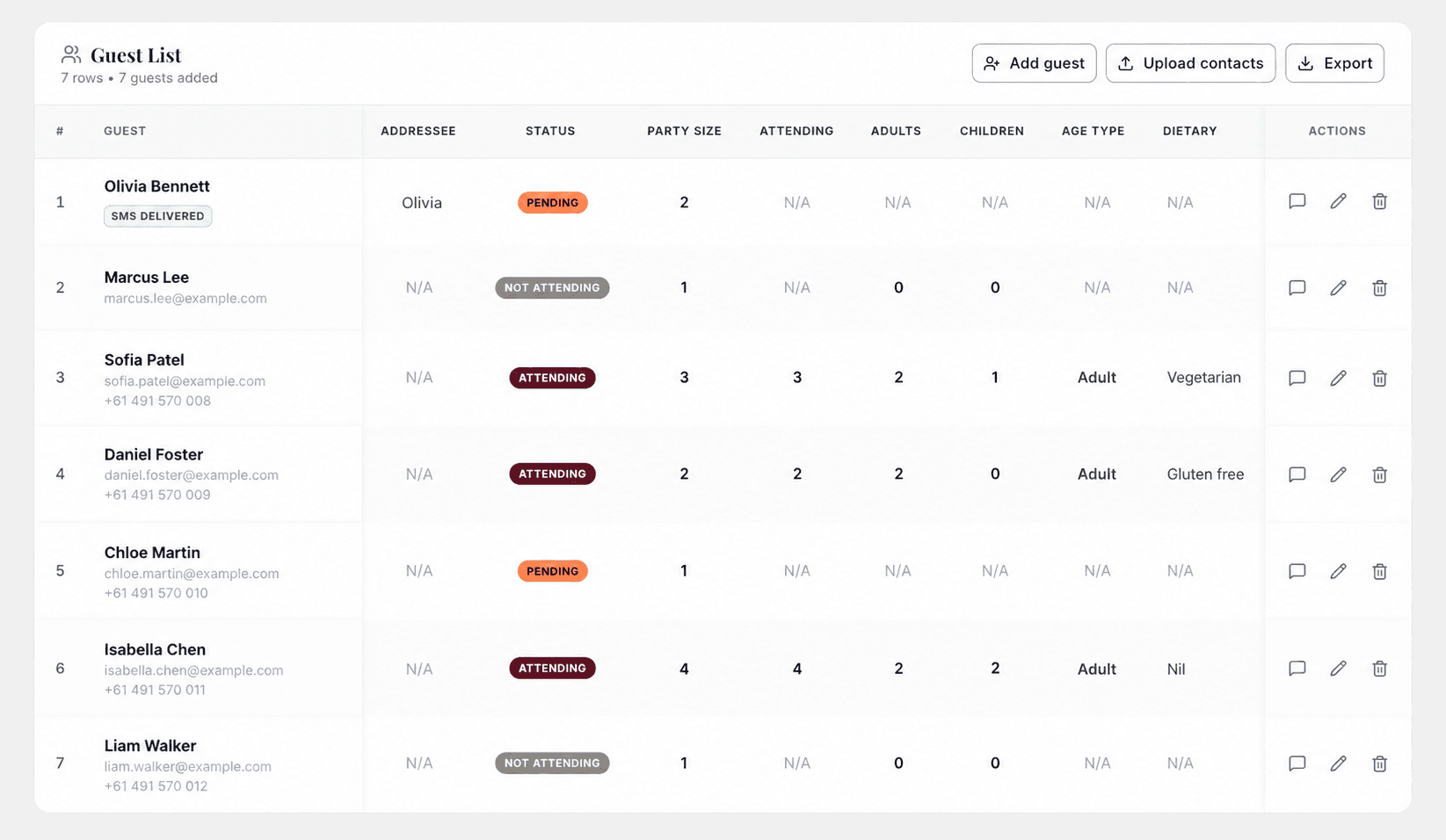
Guest list
Learn how to add or upload more guests, update their details, retry an invitation, and remove guests from your event.
Open your guest list
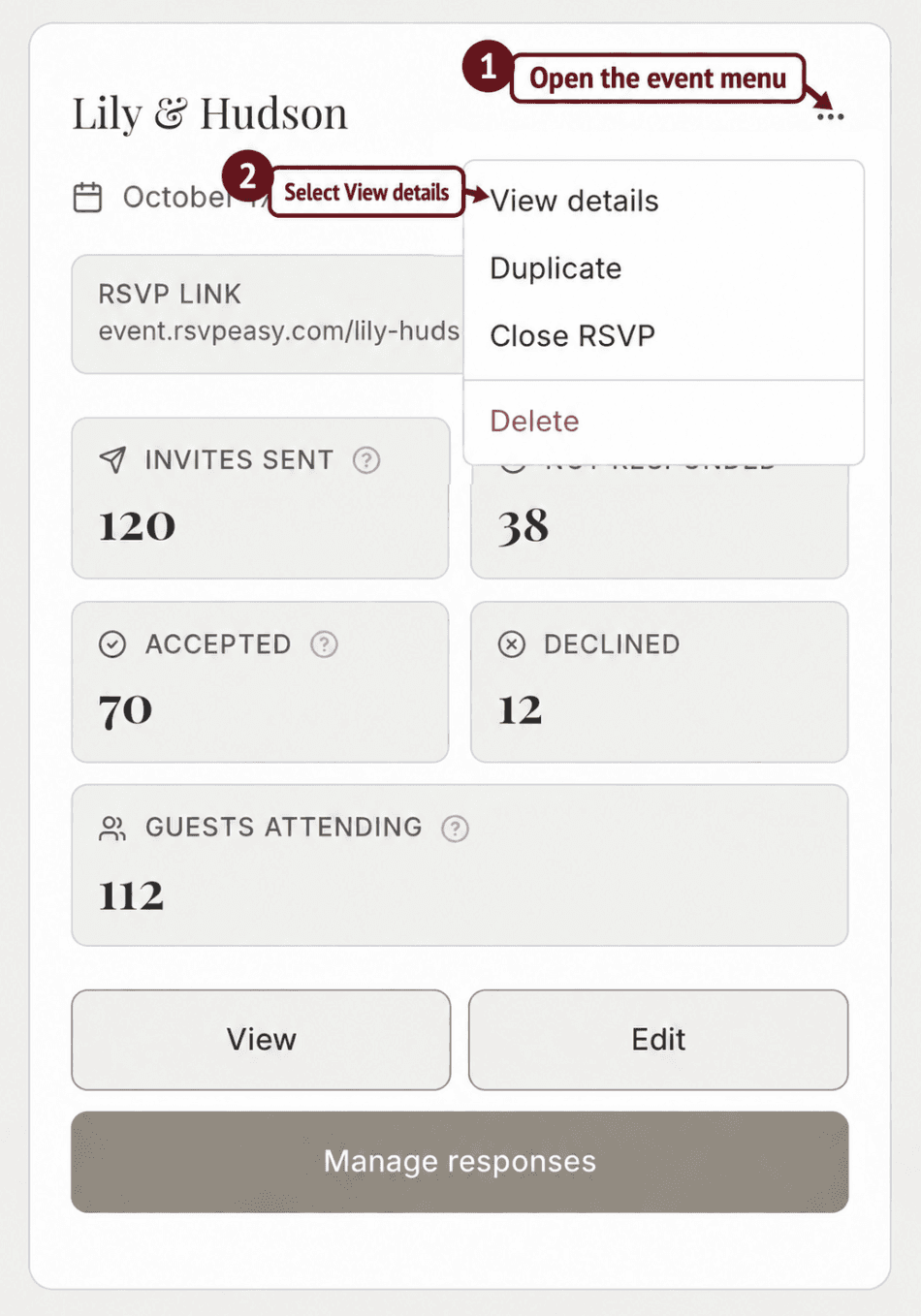
On your dashboard, find the event you want to update. Select the three dots in the top right corner of its event card, then choose View details. Scroll to Guest List.
Add or upload more guests
In Guest List, select Add guest to enter one guest manually. To add several guests at once, select Upload contacts and upload your completed guest list file. Check the list after uploading to make sure the names, contact details and party sizes are correct.
Edit a guest’s details
Find the guest’s row and select the pencil icon under Actions. Update their details, then save your changes. You can use this if a name, email address, mobile number or other guest information needs correcting.
Retry an SMS or email invitation
Find the guest and check the delivery information shown beneath their name. Select the message icon under Actions to view the available messaging options and retry the invitation where offered. Check that the guest’s email address or mobile number is correct before retrying.
Delete a guest
Find the guest’s row and select the bin icon under Actions. Confirm the deletion when prompted. Check that you’ve selected the correct person, as removing them may also remove their invitation and response details.